
Step 1
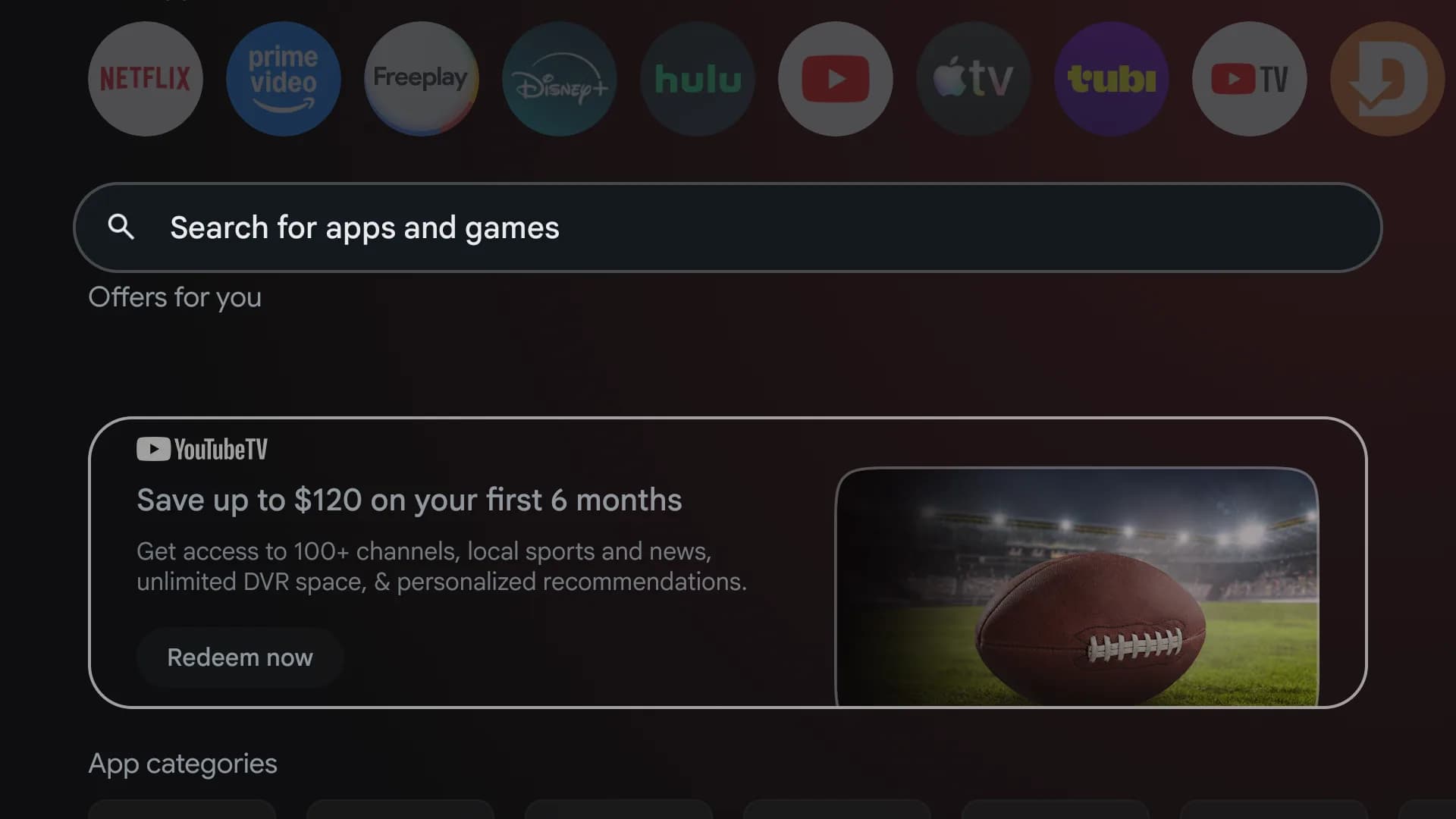
Open Google Play on the TV
From the TV home screen, open Apps or Google Play. Select “Search for apps and games.”
KinTV setup guide
These screens were captured on a real Google TV Streamer. Menu names can vary slightly by television, but the installation path is the same.
Verified on Google TV with the television remote
You need a compatible Android TV or Google TV connected to the internet, plus the Kinmory app on a phone. Sign in to Kinmory and create or join your family before pairing the TV.
Step 1
From the TV home screen, open Apps or Google Play. Select “Search for apps and games.”
Step 2
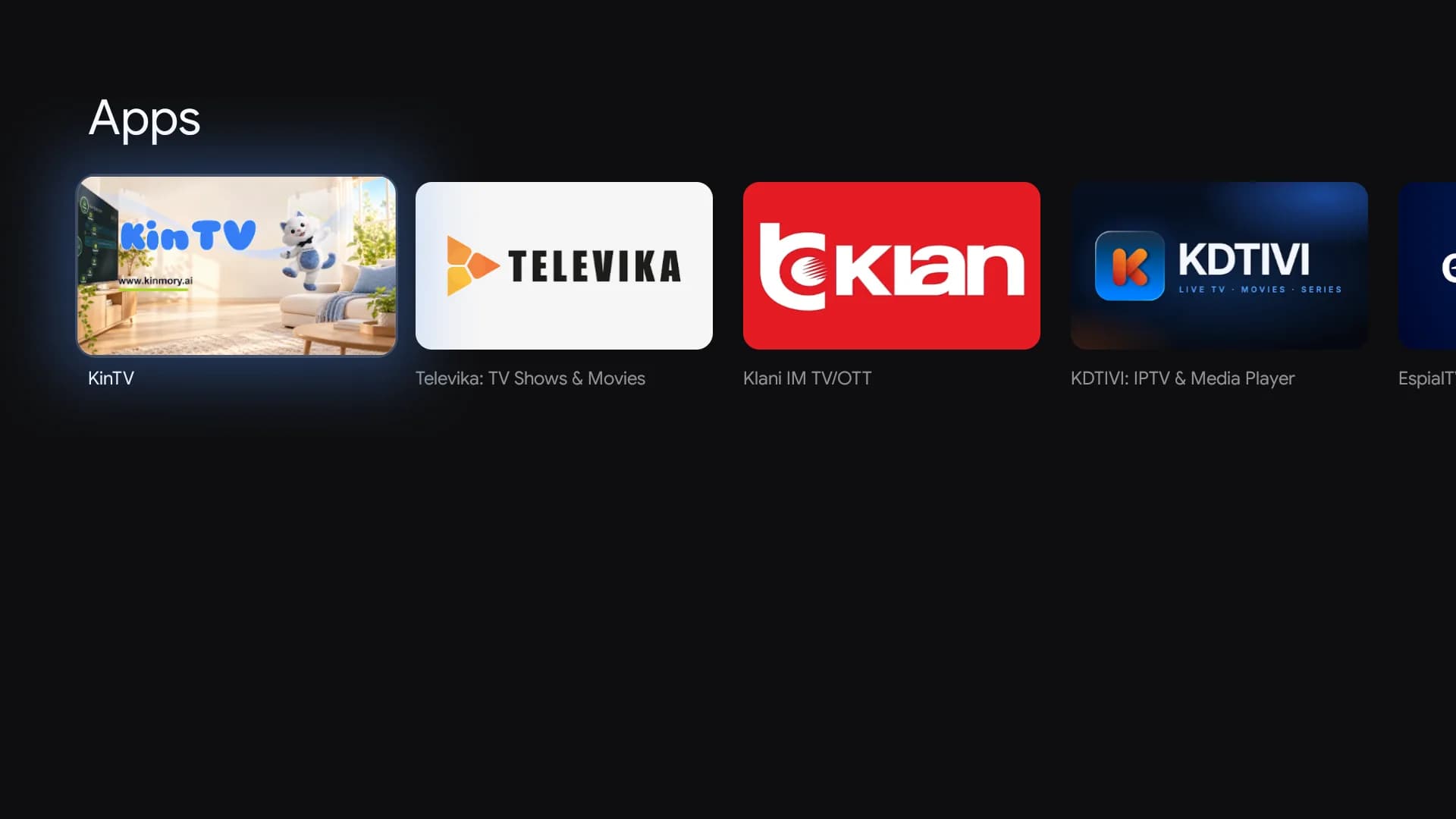
Enter “KinTV” with the on-screen keyboard or voice search. Select the KinTV result from Worldmemory.
Step 3
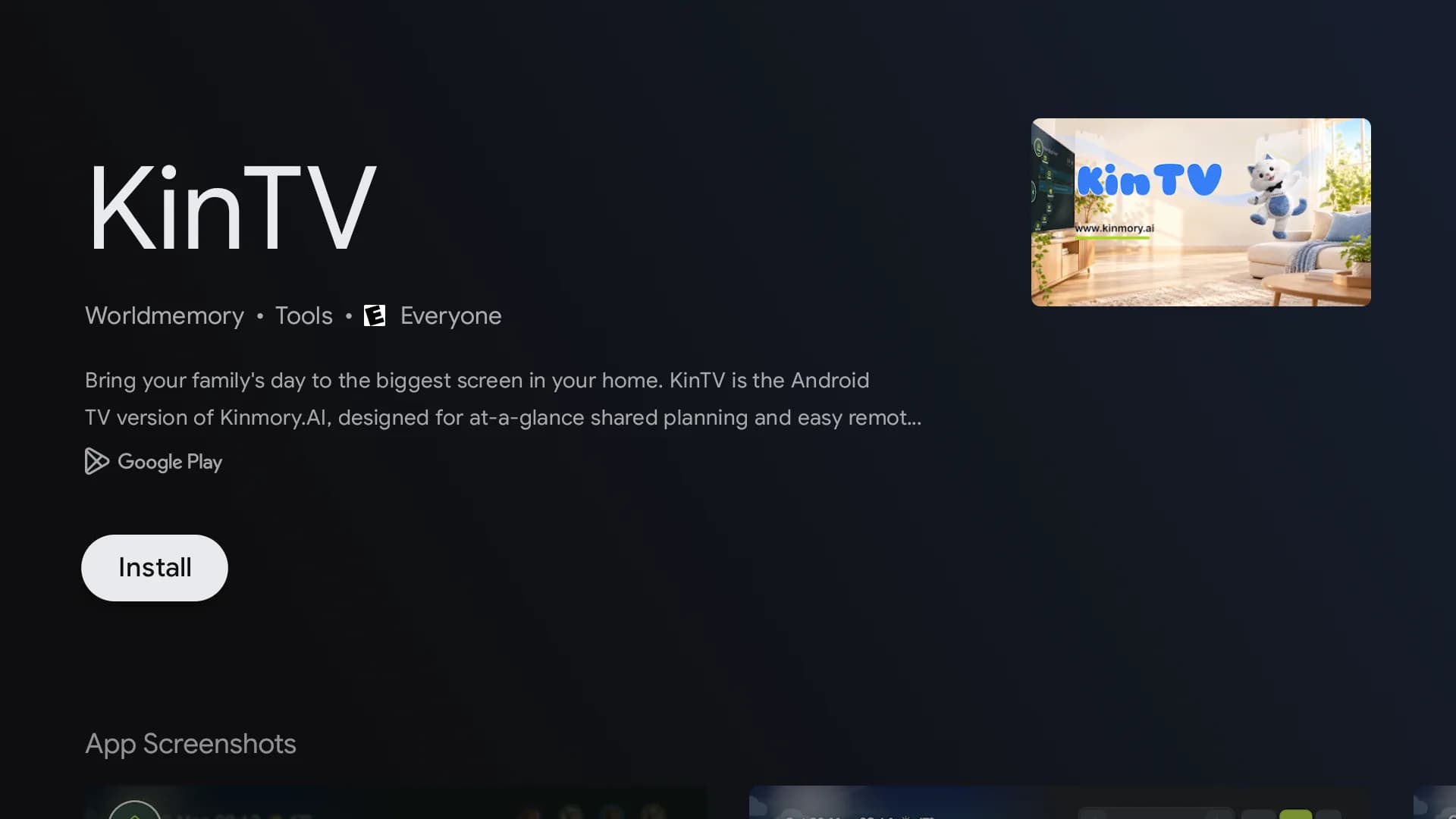
On the KinTV app page, select Install and wait for Google Play to finish downloading the app.
Step 4
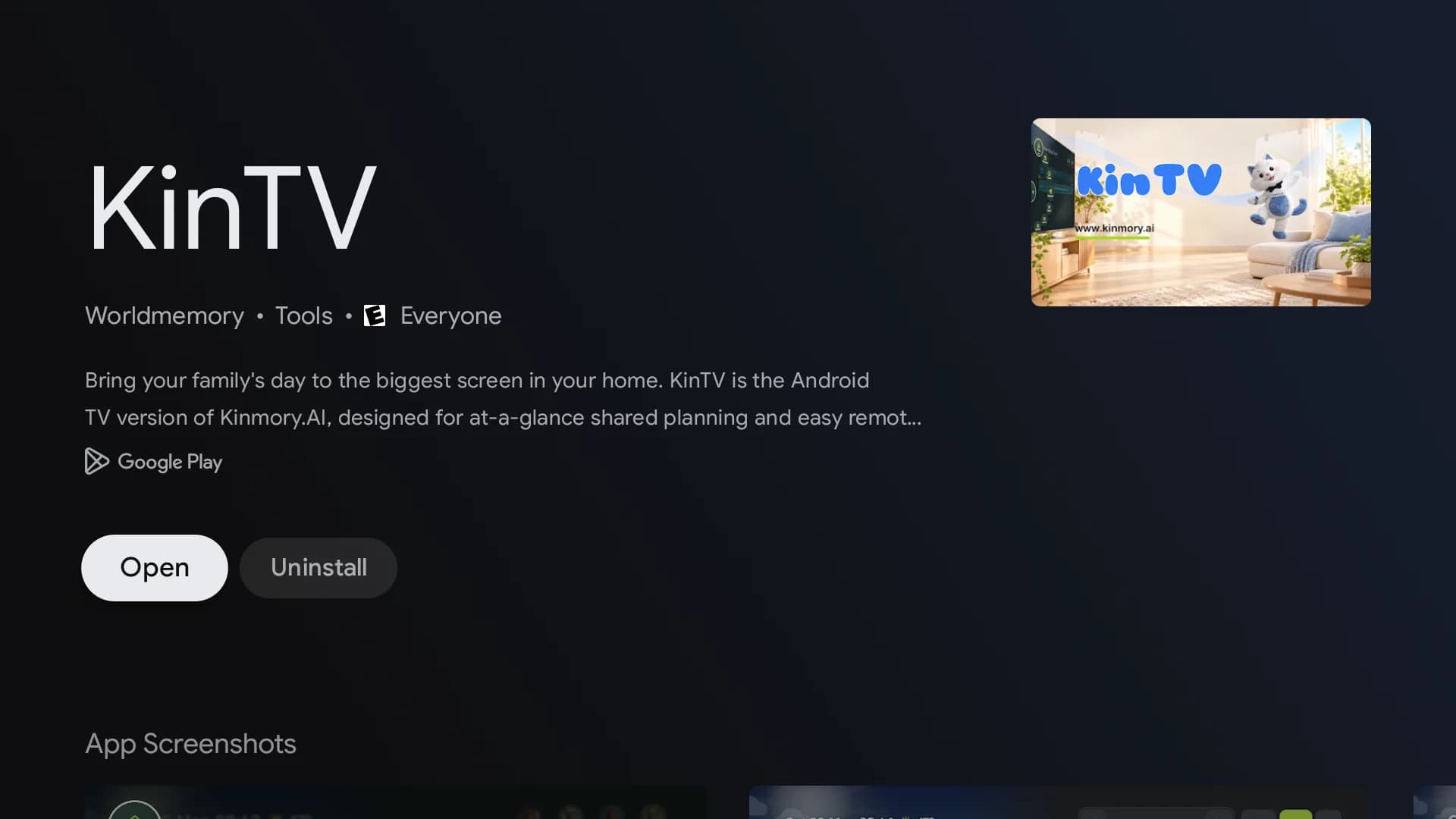
When installation finishes, the button changes to Open. Select it to launch KinTV for the first time.
Step 5
KinTV shows two QR codes. The smaller code on the left downloads the Kinmory phone app. The larger code on the right connects this TV to your Kinmory family.
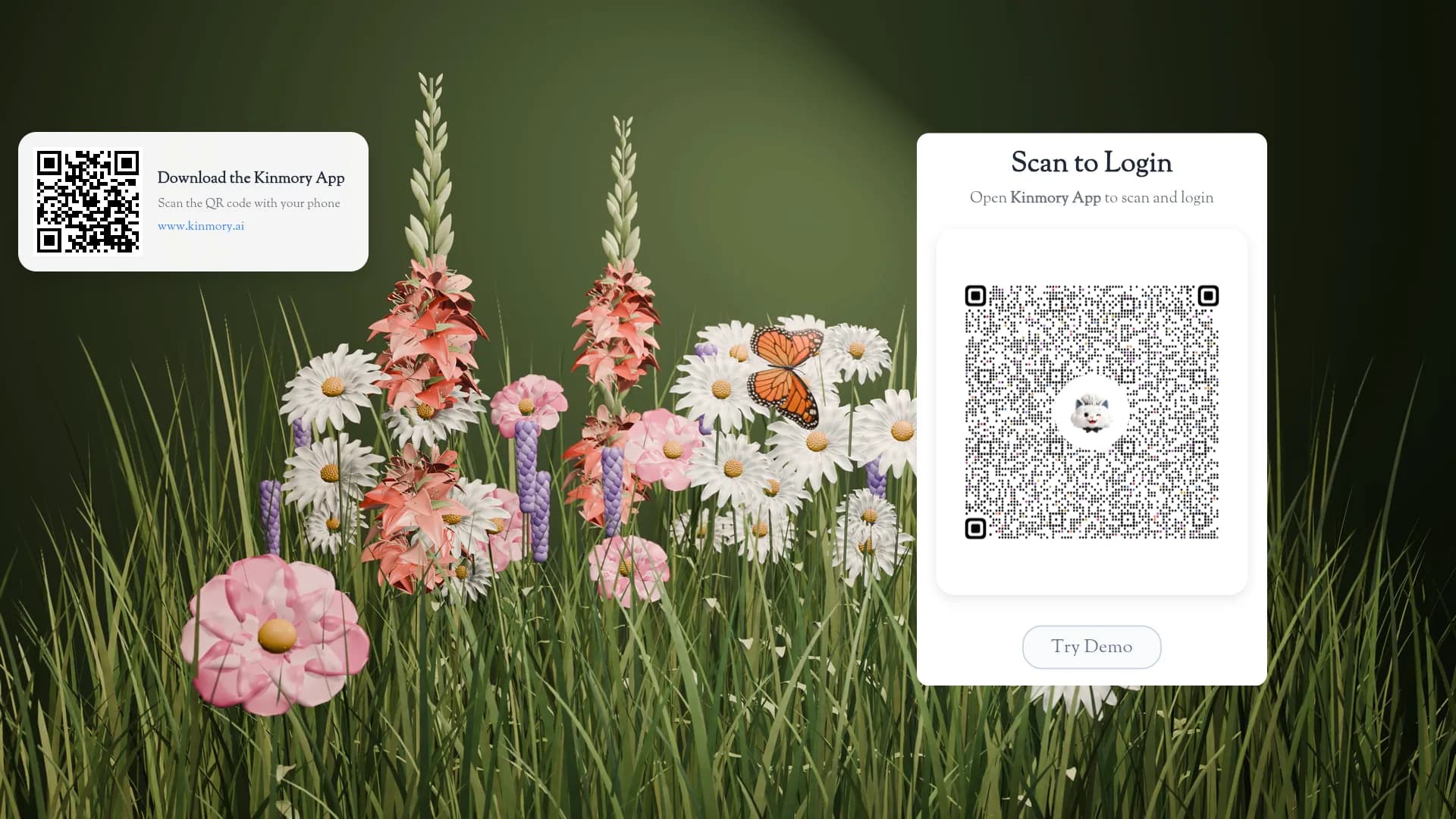
After pairing succeeds, KinTV opens your family view. Use the remote arrows to move, OK to select and Back to return.
Confirm that the device runs Android TV or Google TV and that Google Play is available in your country. KinTV does not currently support Samsung Tizen, LG webOS, Roku, Fire TV or Apple TV.
Leave KinTV open and use the refresh option if it appears, or close and reopen KinTV to generate a new code.
Check that the phone is signed in to the intended Kinmory family, then confirm that the TV has an internet connection and reopen KinTV.
Install KinTV, pair it once with Kinmory and browse schedules, tasks, meals and photos with the remote.
Open KinTV on Google Play