
How to Turn Your TV Into a Family Calendar with KinTV
Turn an Android TV or Google TV into a shared family calendar with KinTV. See schedules, tasks, meals and photos without buying another screen.
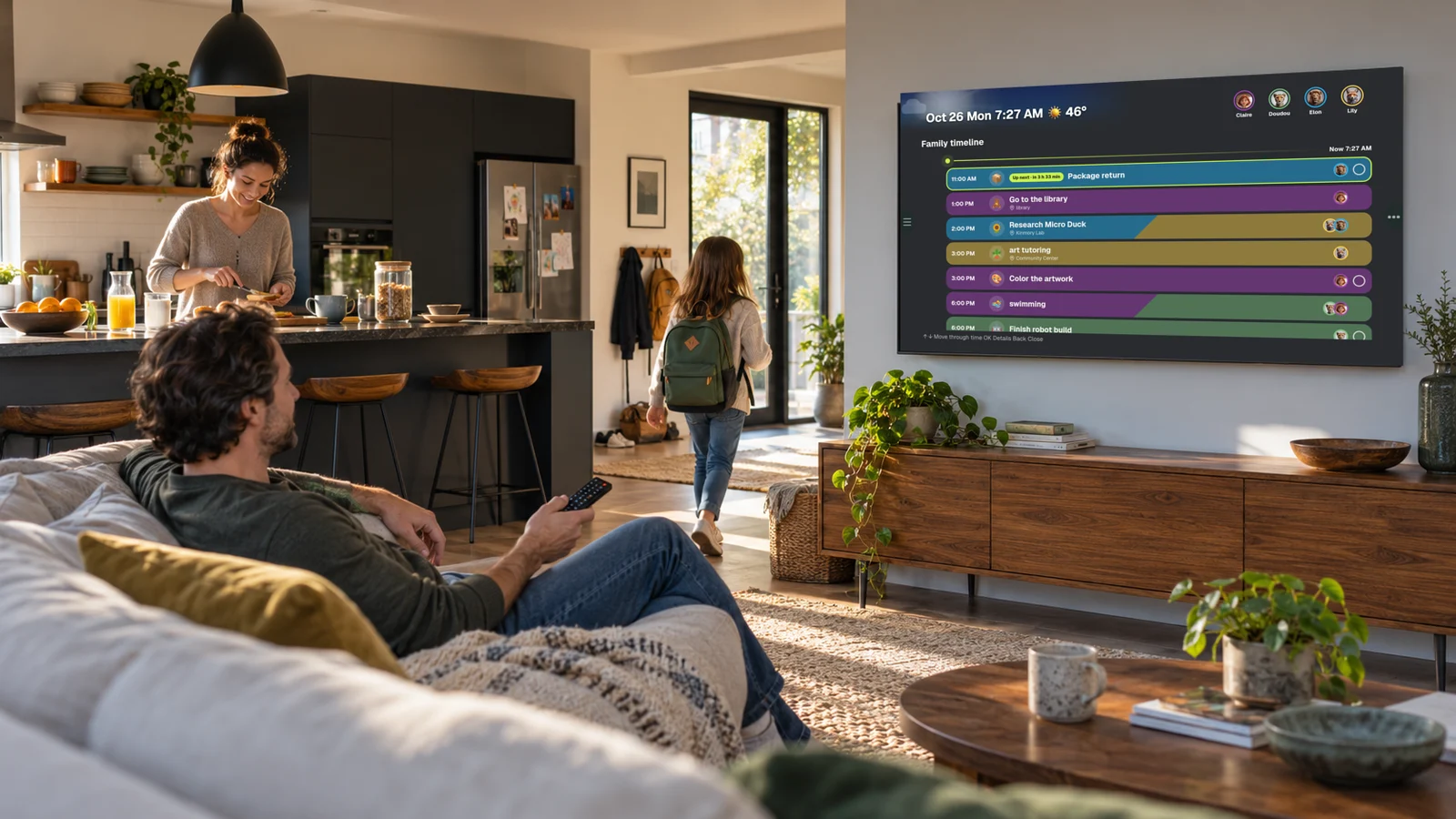
Your family may already own the biggest shared screen it needs. KinTV turns a supported Android TV or Google TV into a family calendar for schedules, tasks, meals and photos—without asking you to buy another display. The result is a practical family calendar for TV that reuses a screen already in your home.
The family calendar is shared. The screen usually isn't.
A shared calendar can contain every practice, appointment and pickup—and still leave one person answering all the questions. The information may be technically available to everyone, but it often lives inside a parent's phone, behind an app that nobody else remembers to open.
That is why paper calendars, whiteboards and dedicated family displays remain useful. They put the plan somewhere visible. A child can see what happens after school. A partner can check the pickup time. A grandparent or babysitter can understand the day without borrowing someone else's phone.
Visibility changes a calendar from a private tool into a shared household reference point.
The screen was already there. What was missing was a family view built for it.
Why buy another screen?
Dedicated family calendar displays can be a good fit. They stay in one place, many offer touch controls, and their only job is to remain visible. But they also add another piece of hardware to buy, mount, power and maintain.
Many homes already have a large screen in a shared room. It may be the living-room television, a kitchen TV, a Google TV in a family room or an older television connected to an Android TV device. Between shows, that screen can do more than sit dark.
KinTV gives families another option: put a family calendar on TV using the television they already own.
Meet KinTV, built for Android TV and Google TV
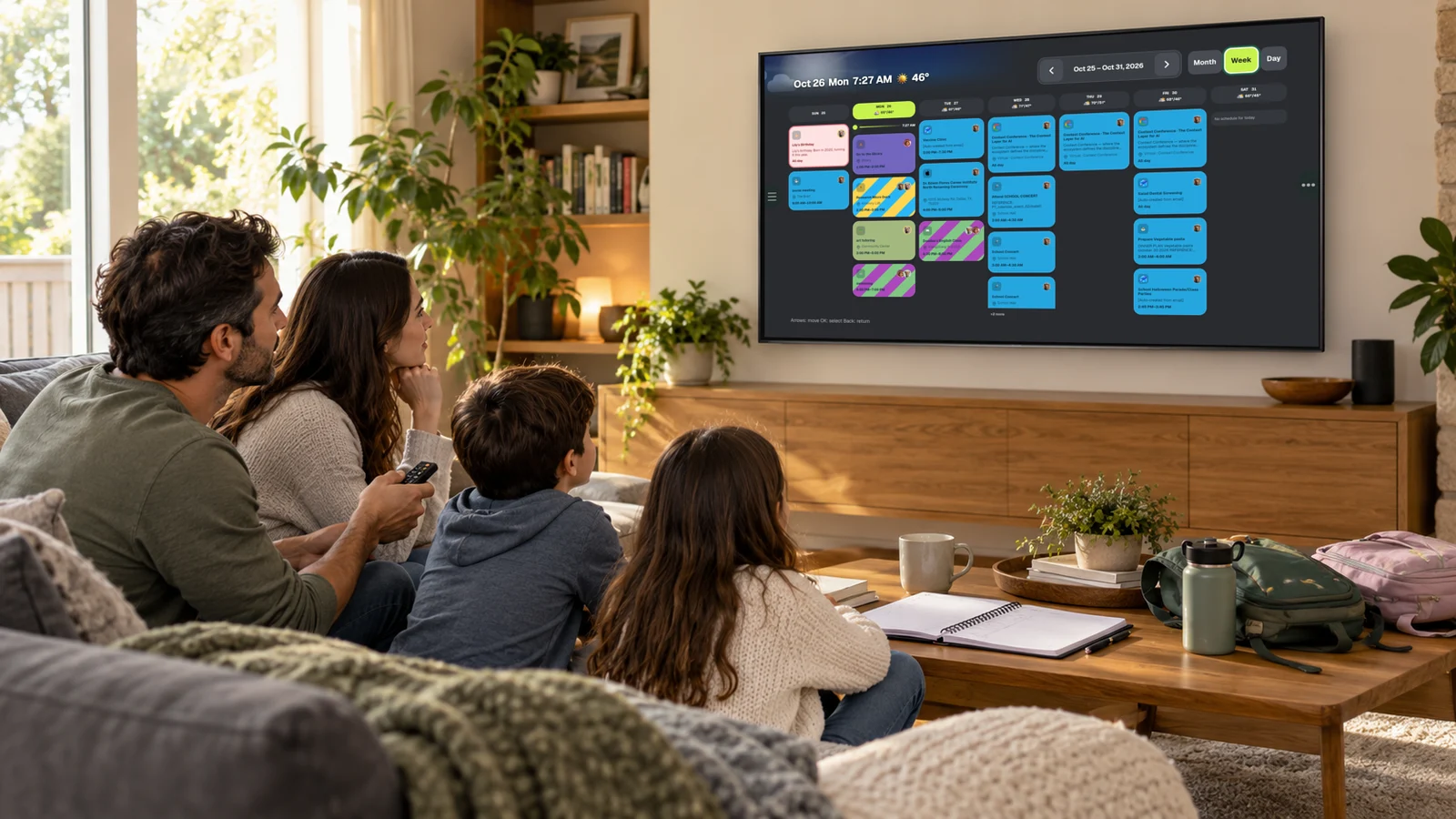
KinTV brings the Kinmory family calendar to your television. Install it from Google Play on a compatible Android TV or Google TV, connect it to your Kinmory family, and the shared plan appears on the largest screen in the room.
On supported devices, KinTV works as an Android TV family calendar or a Google TV family calendar, with the same remote-first experience on both platforms.
This is not a phone interface stretched until it fills a television. KinTV is designed around the way TV apps are actually used:
- Directional-pad navigation so every visible control can be reached with the remote.
- Clear focus states that show exactly what will open when you press OK.
- Large type and high contrast for reading from across the room.
- Landscape-first layouts that use the width of the television.
- Fewer steps between opening KinTV and seeing what the family needs next.
More than a calendar grid
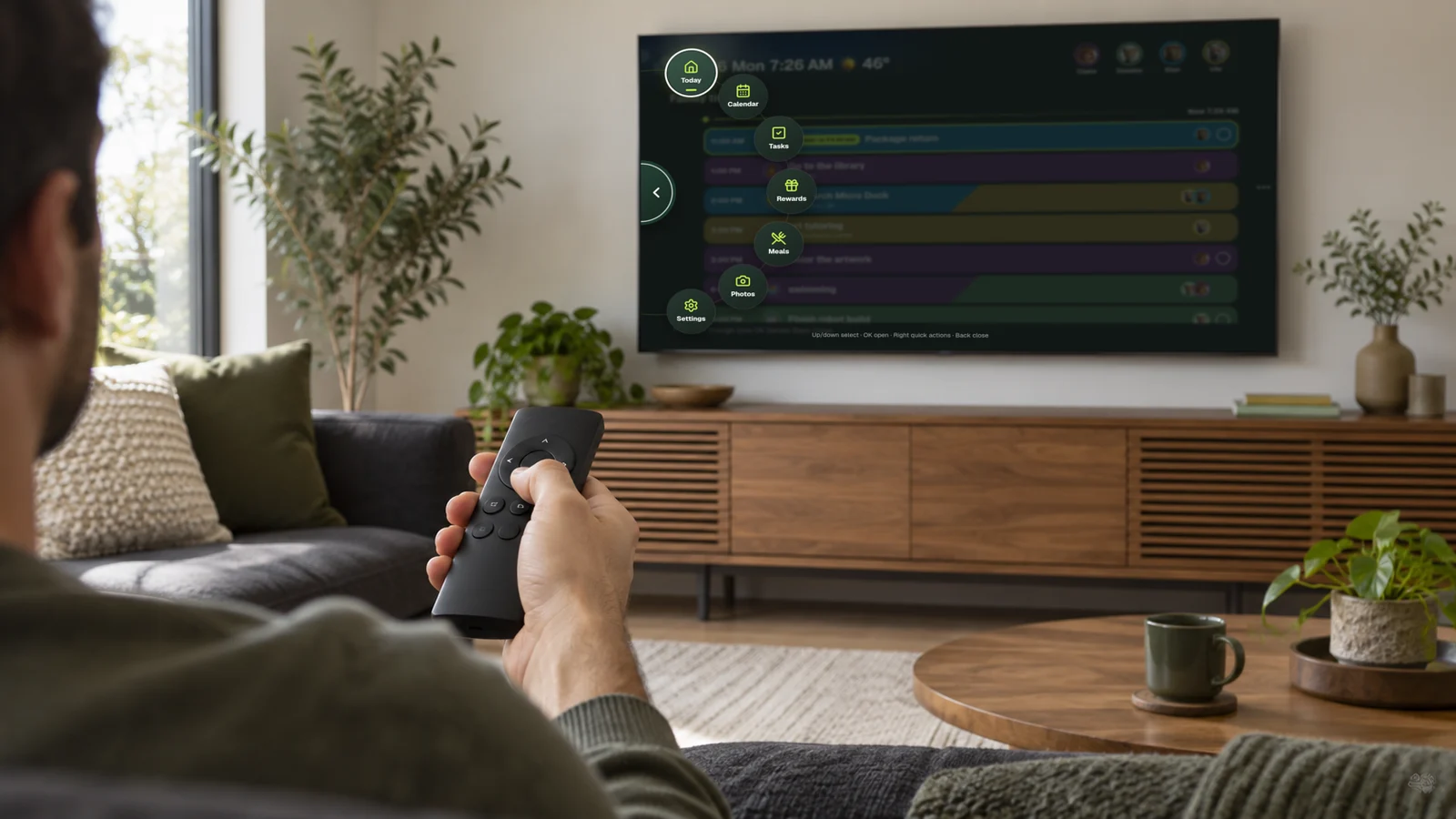
A family day is not made of appointments alone. There are chores to finish, meals to plan, things to return, children to pick up and memories worth keeping. Used this way, KinTV becomes a TV family organizer for calendars, tasks, rewards, meals and photos—not just another calendar grid.
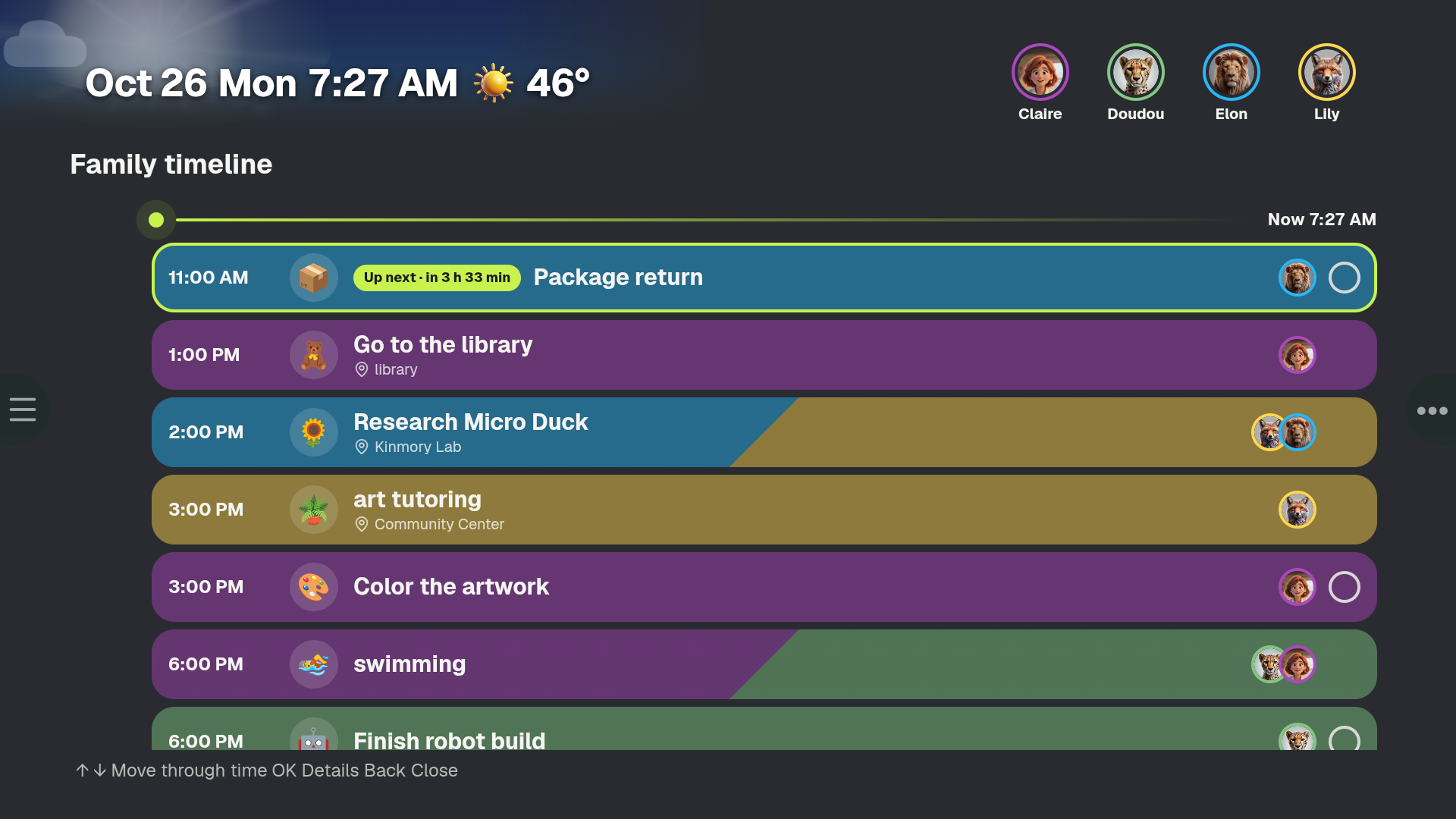
Open the family timeline to see what is happening next, when it starts and who is involved.
Family members can browse assigned tasks, completion status and the points attached to each task.
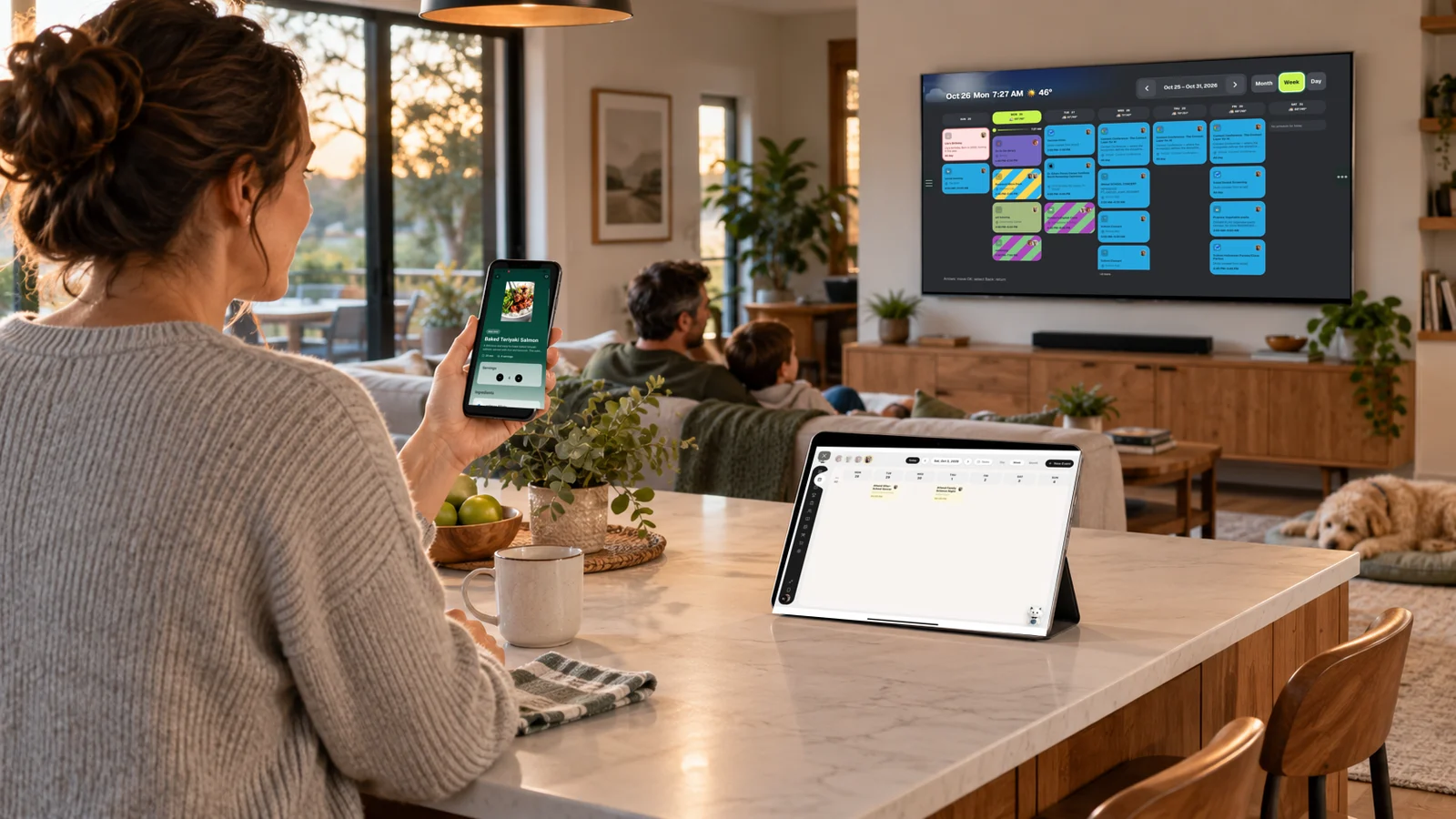
Move between day and week calendar views to understand pickups, activities and shared events.
Browse breakfast, lunch, dinner and snack plans, including saved dishes for the day.
Browse shared memories on the same large screen when the family is together.
Move between Today, Calendar, Tasks, Rewards, Meals, Photos and Settings with the remote.
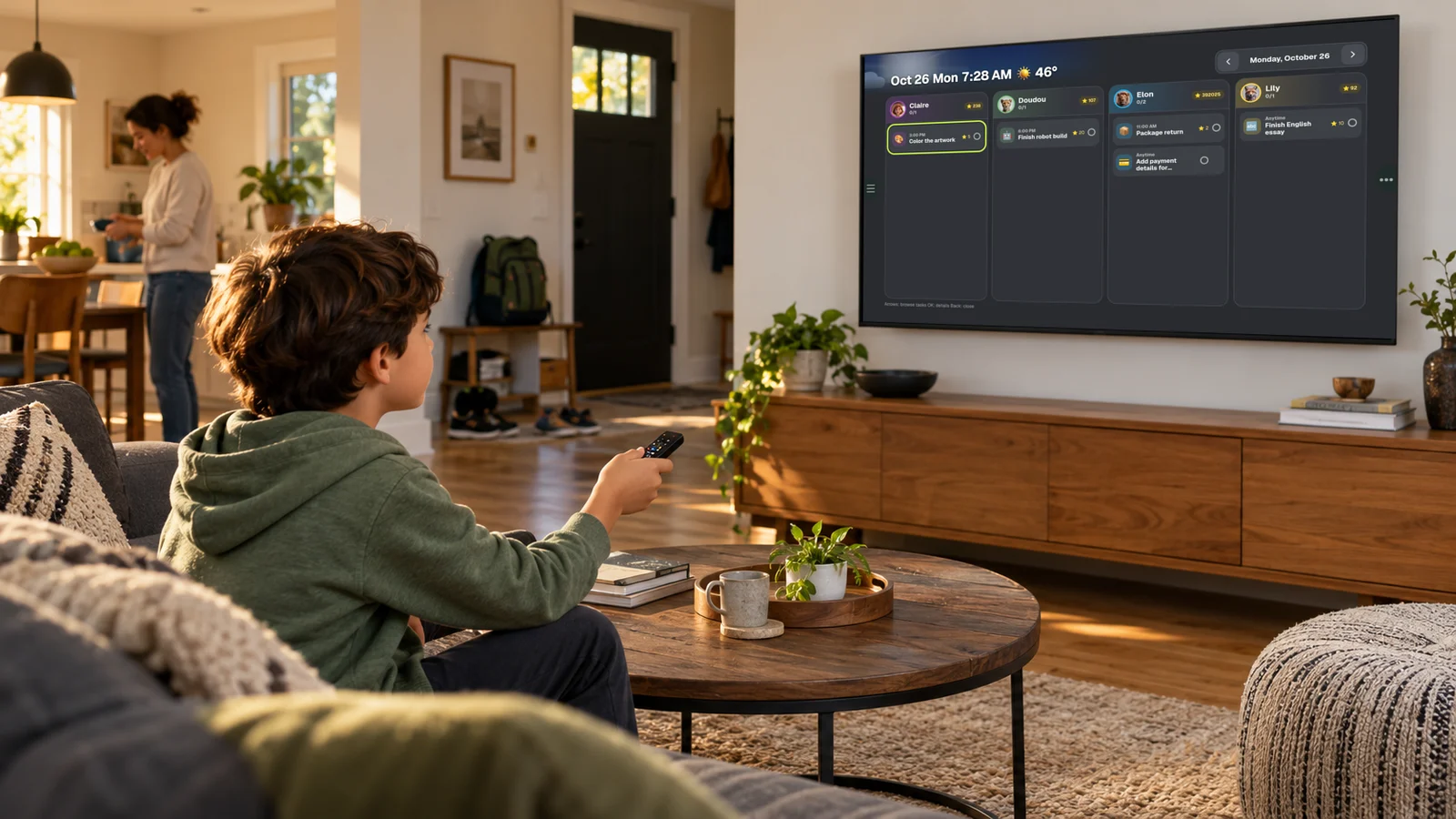
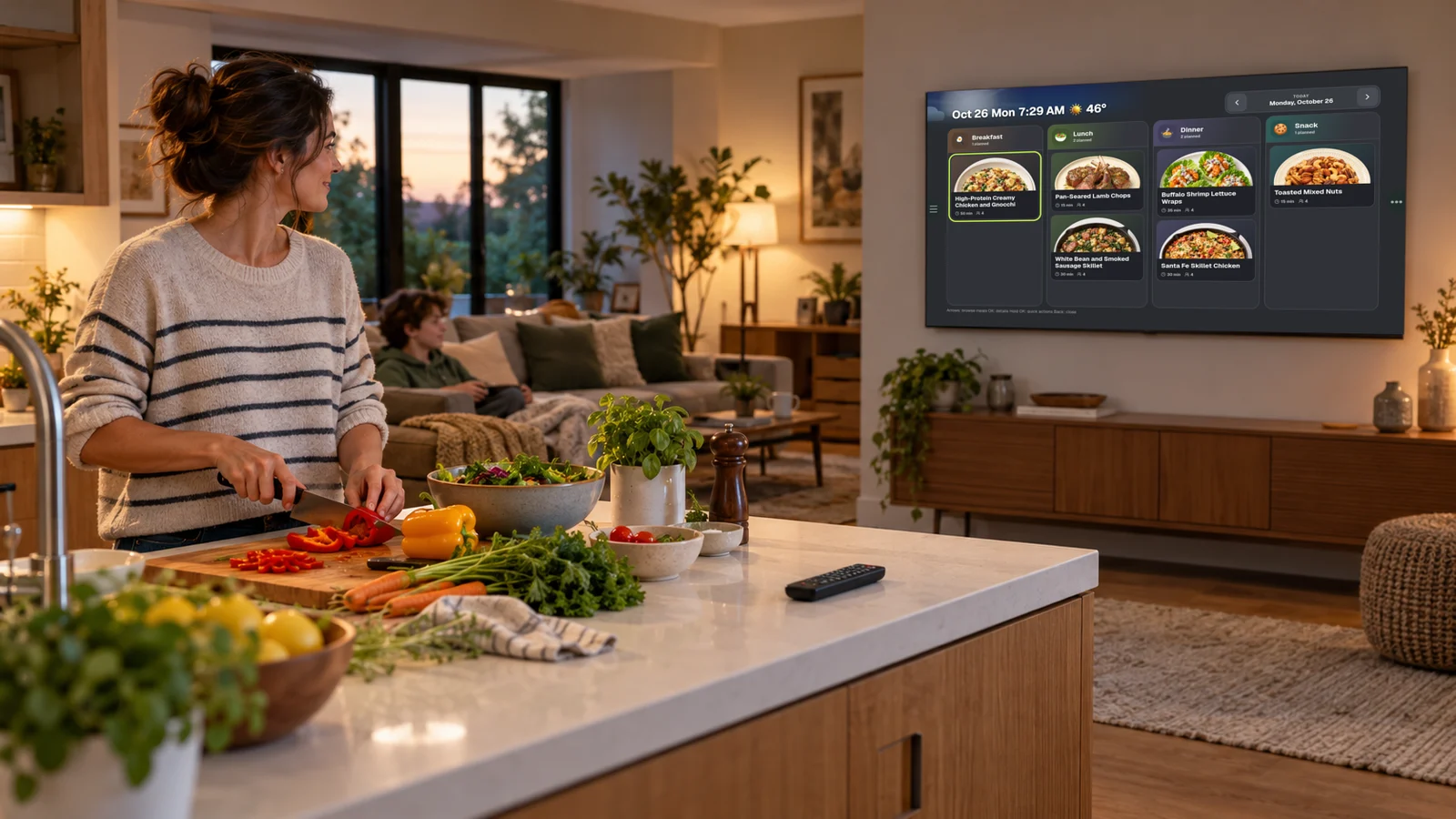
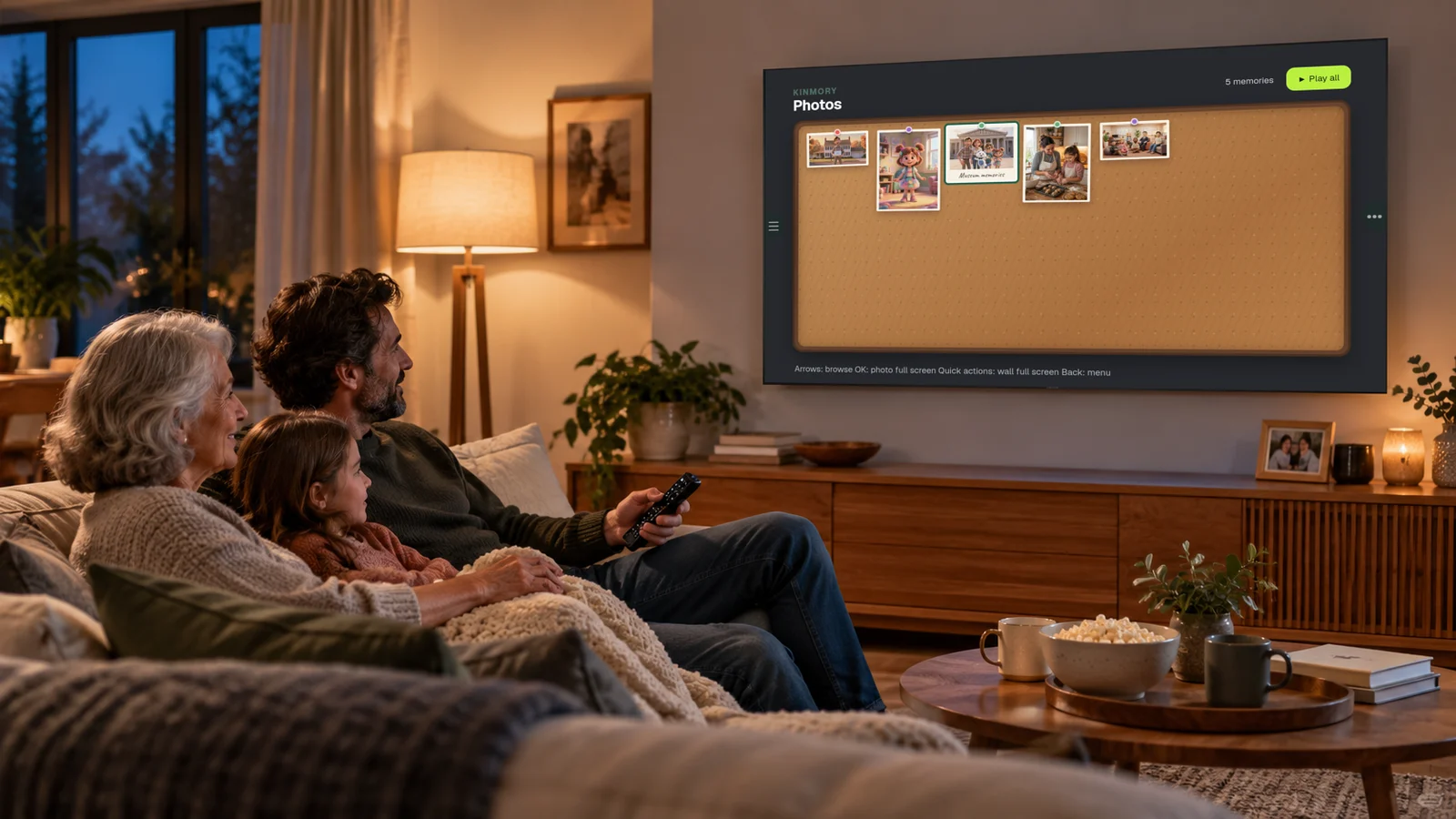
One family system, three kinds of screen
KinTV is most useful because it is not an isolated calendar on a television. It uses the same family system as Kinmory and KinCals. Each screen takes the role that feels natural for it.
Use the Kinmory app for voice, photos, forwarded information, quick changes and AI-assisted family organization while you are moving through the day.
Use KinCals when the family wants a close-up, touch-friendly display on a wall, counter, refrigerator or desk.
Use KinTV when the family wants a large shared view controlled from the couch with a familiar remote.
How to put your family calendar on the TV
- Open Google Play on the TV. On a supported Android TV or Google TV, open Apps or search from the home screen.
- Find and install KinTV. Search for “KinTV,” open the app listing and select Install.
- Connect your family. Open KinTV and follow the on-screen pairing steps in the Kinmory app.
- Choose the view your family needs. Start with Today for the next few hours or Week for the bigger picture.
Availability note: device compatibility and availability can vary by television, operating system version and country. Check the current Google Play listing on your TV before installing.
TV, tablet or dedicated display?
The best family screen is the one people will actually see and use. That may be a television, a tablet turned into a family calendar on the refrigerator or a dedicated calendar display. If you are comparing purpose-built hardware, see our guide to Skylight Calendar alternatives. The differences matter more than the logo on the frame.
| Option | Best when | Important tradeoff |
|---|---|---|
| KinTV on your TV | You already own a compatible Android TV or Google TV and want a large shared view. | The family plan is visible only while the TV is on and KinTV is open. |
| KinCals on a tablet | You want a smaller display in the kitchen, entryway or another high-traffic spot. | A tablet needs a stand or mount, power and a suitable always-visible location. |
| Dedicated calendar display | You want a purpose-built screen that can remain visible throughout the day. | It requires additional hardware, space and potentially an ongoing plan. |
KinTV may fit your home if…
- You already have an Android TV or Google TV in a shared room.
- You want to try a visible family calendar without buying another screen.
- Your family plans together from the couch or around a kitchen TV.
- You want calendar, tasks, meals and photos connected to Kinmory.
A dedicated screen may fit better if…
- The calendar must remain visible while the main TV is used for entertainment.
- Family members need frequent touch input directly on the display.
- The best location for the family plan does not have a television.
- You prefer a device whose only purpose is family organization.
Frequently asked questions
Can I use my TV as a family calendar?
Yes. A supported Android TV or Google TV can run KinTV and display your Kinmory family schedule, tasks, meals and photos while the app is open.
Does KinTV work on Google TV?
KinTV is designed for supported Google TV and Android TV devices. Compatibility can vary by device, operating system version and country, so check the current Google Play listing before installing.
Does KinTV work on every smart TV?
No. KinTV is currently a smart TV family calendar for compatible televisions and streaming devices that run Android TV or Google TV. Samsung Tizen, LG webOS, Roku, Fire TV and Apple TV are not currently supported.
Do I need the Kinmory app?
KinTV is part of the Kinmory family system and uses the Kinmory app for family setup and device pairing. Follow the instructions shown by the current KinTV version during setup.
Can I control KinTV with the TV remote?
Yes. KinTV is designed for directional-pad navigation. Use the arrow buttons to move focus, OK to select an item and Back to return.
What can KinTV display?
The TV interface includes Today, calendar views, tasks, rewards, meals, family photos and settings. Available features may vary by app version and Kinmory plan.
What happens when I want to watch TV?
Exit or switch away from KinTV and use the television normally. Return to KinTV when the family wants the shared plan on screen. KinTV is not an overlay that remains on top of other television apps.
Can KinTV show events from Google Calendar?
Yes. Connect Google Calendar to Kinmory, and events that sync to the Kinmory family calendar can also appear in KinTV. Sync behavior may vary by account and app version.
Is KinTV the same as a dedicated family calendar display?
No. Both can make a family plan visible, but a dedicated display has its own screen and may remain on throughout the day. KinTV reuses a supported television, which avoids another hardware purchase but shares the screen with entertainment.
Put the family plan on the biggest shared screen in your home
Install KinTV on a compatible Android TV or Google TV, then connect it to the Kinmory app.
Related reading
- Family Travel Details, Easy to Find | Kinmory.AI
Keep hotel addresses, check-in times, confirmations, and plans together. Practical tips to help the whole family find travel details fast.
- TimeTree vs Cozi (2026): Which Family Calendar Wins?
TimeTree vs Cozi in 2026: real prices, free tiers, features, and who each family app is for — plus where an AI option like Kinmory fits.
- The ADHD App Graveyard: Why Productivity Tools Don't Stick
Abandoned planners aren't a discipline problem. A calendar's input box sits after the hard thinking—so it offloads the cheapest part and adds a step.
- Intention Offloading: The Science of External Reminders
External reminders cut forgetting from about 45% to 5%. The surprising part: people already offload more than is optimal — and they know why they do it.
Bring your family's plans into one place.
Use Kinmory on the web or phone to share calendars, tasks, meals and the information your household needs next.

Scan to Download
Point your camera here
kinmory.ai/download/kinmory